Keyboards are more than just a set of buttons—they are the gateway to navigating your computer efficiently. Each key serves a unique purpose, grouped into categories based on its function. Understanding these keys can improve your typing speed, productivity, and overall computer skills. Here’s a comprehensive guide to the different types of keyboard keys.
- Alphanumeric Keys
- Frequently Asked Questions:
- What are keyboard keys and why are they important?
- What are the main types of keyboard keys?
- How do function keys (F1–F12) work?
- What are modifier keys and how are they used?
- Why is the numeric keypad useful?
- What are toggle keys and how do they work?
- How can learning all keyboard keys improve productivity?
- Conclusion
Alphanumeric Keys
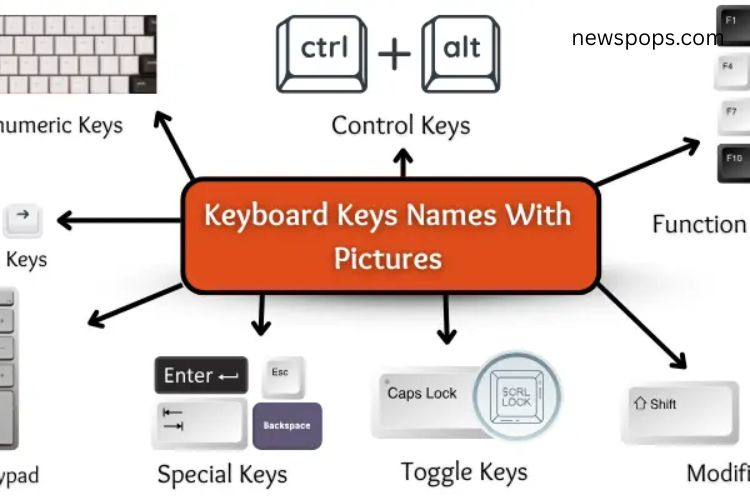
Alphanumeric keys are the most frequently used on any keyboard. They include all letters from A to Z, numbers from 0 to 9, and symbols like @, #, $, and %. These keys are essential for writing, coding, and entering passwords.
Functions of Alphanumeric Keys:
- Type letters and numbers
- Enter symbols and special characters
- Write words, sentences, and paragraphs
- Input passwords, codes, and data
These keys form the core of daily computer use, whether for work, gaming, or communication.
Function Keys
Function keys are located on the top row of the keyboard, labeled F1 to F12. They offer shortcuts that help you perform tasks faster and more efficiently.
- Common Uses of Function Keys:
- Opens help menus
- Rename selected files or folders
- Opens search boxes
- Close windows or browser address bars
- Refresh pages or documents
- Jump to the address bar in web browsers
- Spell and grammar check in text editors
- Open Windows startup menu
- Refresh documents in certain programs
- Show menu bars
- Toggle full-screen mode
- Open “Save As” dialog
Function keys simplify navigation and help users execute commands without multiple clicks.
Control Keys
Control keys allow you to perform actions in combination with other keys. They make your workflow faster and more convenient. Examples include Ctrl, Alt, and the Windows key.
Common Uses of Control Keys:
- Ctrl: Execute shortcuts (e.g., Ctrl + C to copy)
- Alt: Alternate commands and switch between windows
- Windows Key: Open Start menu and quick access features
Control keys are essential for multitasking and boosting efficiency.
Navigation Keys
Navigation keys help move the cursor or screen easily. This group includes arrow keys, Home, End, Page Up, Page Down, Insert, and Delete. They are particularly useful when editing documents or browsing large files.
Functions of Navigation Keys:
- Arrow Keys: Move cursor in any direction
- Home: Jump to the start of a line
- End: Jump to the end of a line
- Page Up/Page Down: Scroll up or down quickly
- Insert: Switch between insert and overwrite modes
- Delete: Remove characters ahead of the cursor
Navigation keys streamline text editing and on-screen movement.
Numeric Keypad
The numeric keypad is a section on the right side of the keyboard, resembling a calculator. It is designed for rapid numeric entry, ideal for data entry, calculations, and accounting tasks.
Functions of Numeric Keypad:
- Enter numbers quickly
- Perform basic math operations (add, subtract, multiply, divide)
- Input phone numbers or codes efficiently
- Assist with calculator functions
Using the numeric keypad saves time, especially for professionals who deal with numbers frequently.
Special Keys
Special keys control the typing process rather than inputting characters. These include Enter, Backspace, Spacebar, Tab, and Escape (Esc).
Functions of Special Keys:
- Enter: Start a new line or execute commands
- Backspace: Delete text behind the cursor
- Spacebar: Add spaces between words
- Tab: Indent or move the cursor forward
- Escape (Esc): Cancel tasks or exit menus
Special keys are vital for correcting mistakes and formatting text.
Modifier Keys
Modifier keys change the behavior of other keys when pressed together. They are essential for shortcuts, capital letters, and symbol entry. Examples include Shift, Ctrl, and Alt.
Functions of Modifier Keys:
- Shift: Capitalize letters and enter symbols
- Ctrl: Execute keyboard shortcuts
- Alt: Switch between windows or perform alternate commands
Modifier keys enhance productivity by reducing the need for repetitive actions.
Toggle Keys
Toggle keys act like switches, turning certain features on or off. They include Caps Lock, Num Lock, and Scroll Lock.
Functions of Toggle Keys:
- Caps Lock: Switch between lowercase and uppercase letters
- Num Lock: Enable or disable the numeric keypad
- Scroll Lock: Adjust scrolling behavior on the screen
Toggle keys give users quick control over typing modes and key functions.
Frequently Asked Questions:
What are keyboard keys and why are they important?
Keyboard keys are buttons that allow you to input letters, numbers, symbols, and commands into your computer. They are essential for typing, navigation, and performing shortcuts efficiently.
What are the main types of keyboard keys?
The main types include Alphanumeric Keys, Function Keys, Control Keys, Navigation Keys, Numeric Keypad, Special Keys, Modifier Keys, and Toggle Keys. Each type has a specific purpose to improve productivity.
How do function keys (F1–F12) work?
Function keys are shortcuts for common tasks. For example, F1 opens help, F5 refreshes pages, and F12 opens the “Save As” dialog. They speed up daily computer tasks.
What are modifier keys and how are they used?
Modifier keys like Shift, Ctrl, and Alt change the function of other keys when pressed together. They are used for shortcuts, capital letters, and special symbols.
Why is the numeric keypad useful?
The numeric keypad allows faster input of numbers and calculations. It’s ideal for data entry, accounting, and mathematical operations.
What are toggle keys and how do they work?
Toggle keys, such as Caps Lock, Num Lock, and Scroll Lock, switch certain keyboard functions on or off, allowing easier typing and navigation.
How can learning all keyboard keys improve productivity?
Mastering all keys helps you type faster, navigate documents efficiently, and use shortcuts to save time, making your work smoother and more professional.
Conclusion
Mastering every keyboard key transforms the way you interact with your computer. From alphanumeric and function keys to modifier and toggle keys, each plays a vital role in typing, navigation, and productivity. By understanding their functions and practicing regularly, you can type faster, work smarter, and execute commands with ease. Exploring your keyboard and learning shortcuts not only saves time but also boosts confidence in daily tasks. Start experimenting with different keys today and unlock the full potential of your typing skills.